Home dossier as a PDF.
Create the dossier under Management; the Mac then asks where to save the PDF. Part of Domalta Pro, free to try with the sample house.
Home dossier Domalta
 for the Mac · macOS 15 or later
On the Mac, Domalta is an app of its own, with a sidebar, menus and keyboard shortcuts. You see the same properties as on iPhone and iPad – kept in sync through your own iCloud.
01 / One window for everything

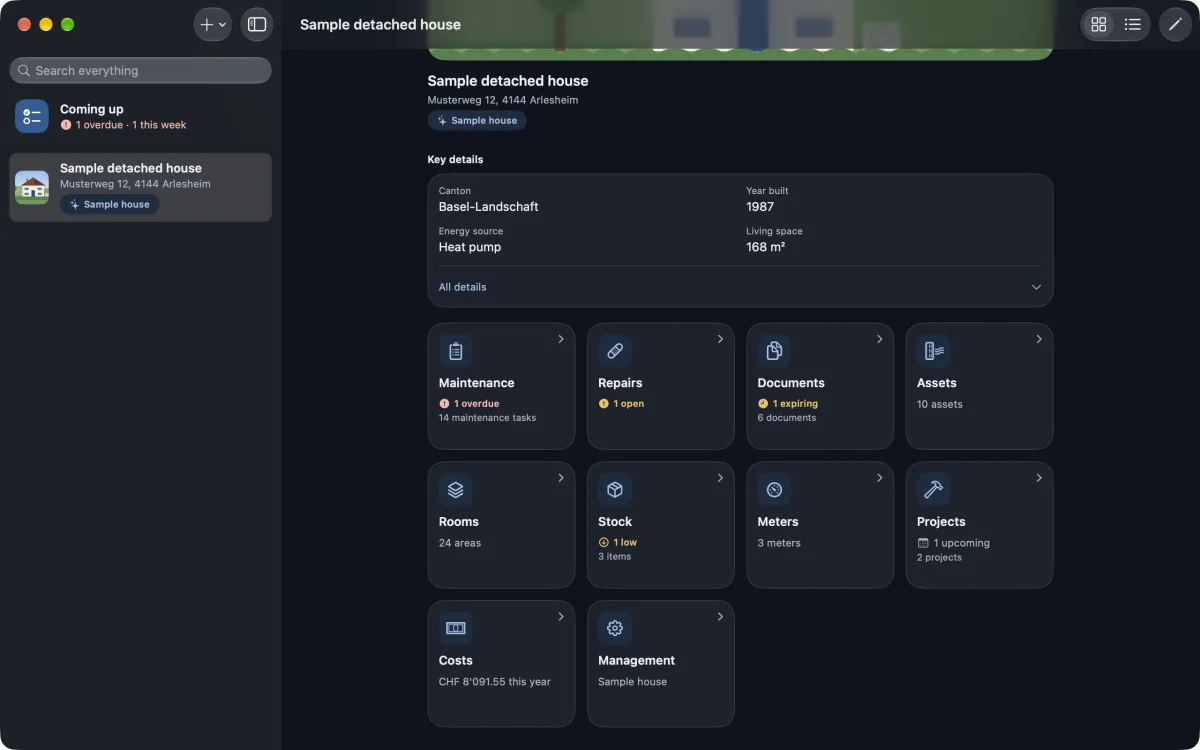
02 / Tiles in a wide window
In a wide window the tiles sit side by side – maintenance, repairs, documents, assets, rooms, stock, meters, projects, costs and management, each with its status. Switch between tiles and list at the top right.
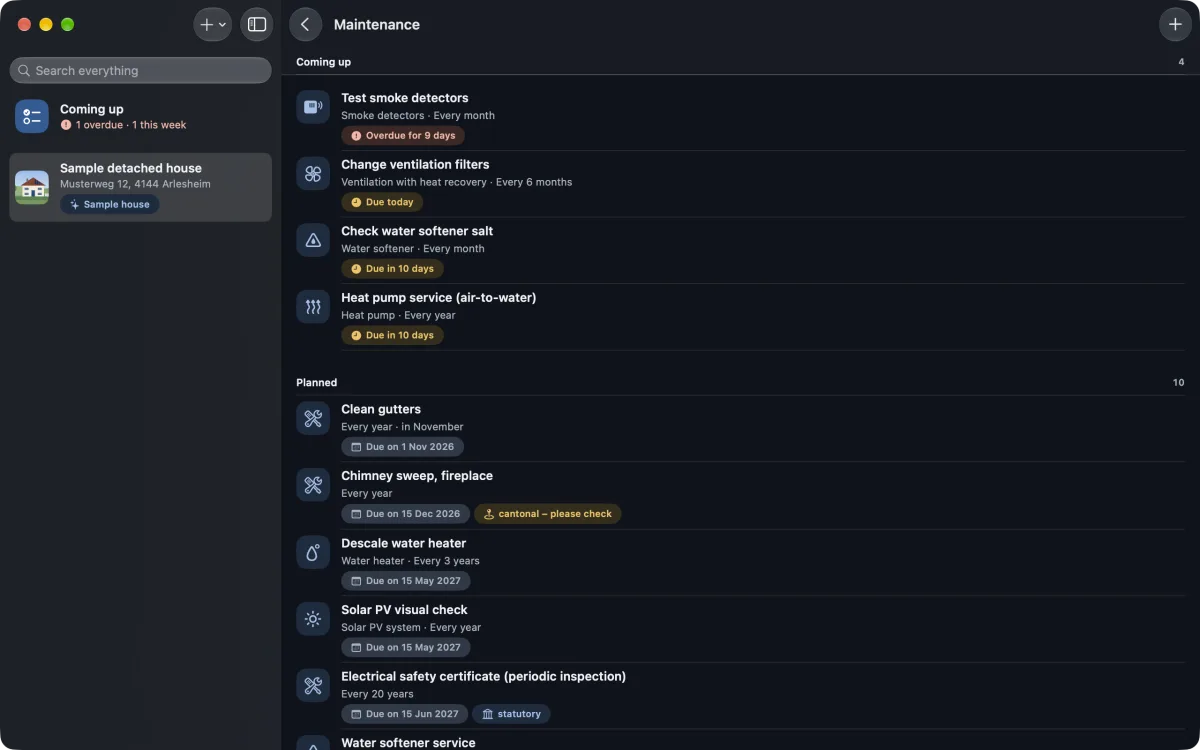
03 / More room for details
Assets show service life, manufacturer, model, serial number, warranty and their maintenance on one page. The maintenance list separates what is coming up from what is planned – and notes where an inspection is required by law or by the canton.

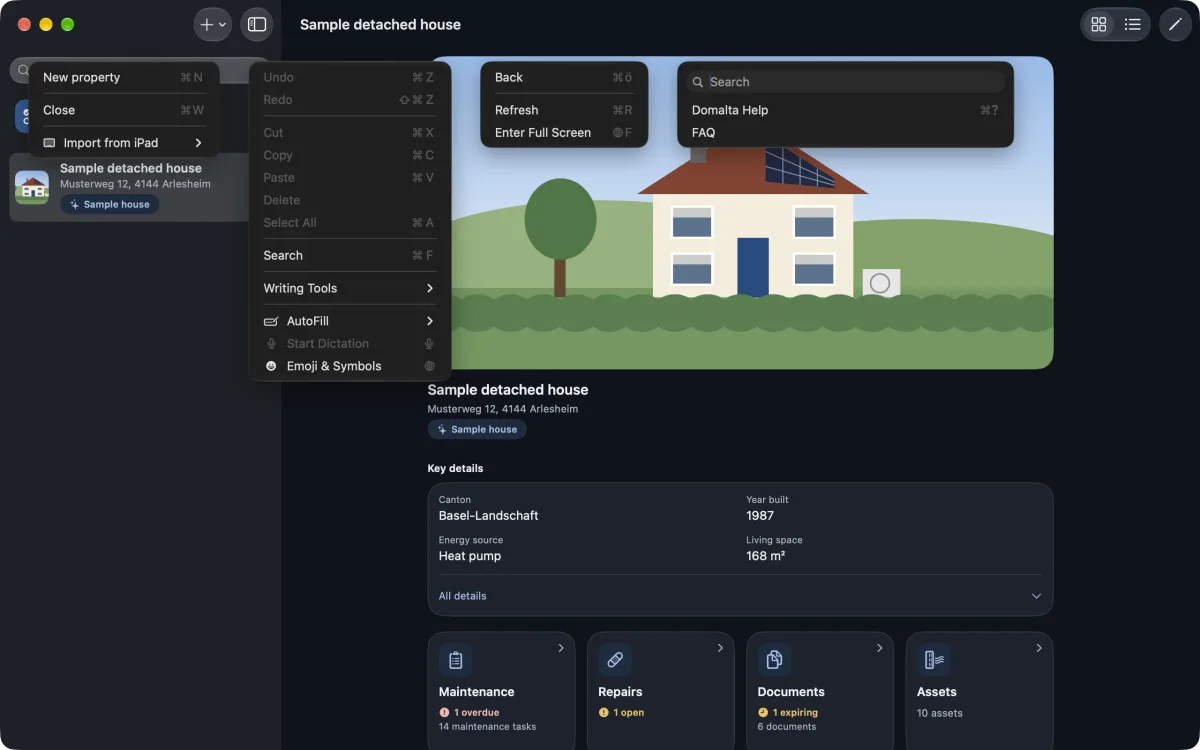
04 / Menus and keyboard shortcuts
The most important commands are in the menus and have a shortcut. If you close the window, Window › Domalta brings it back. Help › Domalta Help opens the guide, Help › FAQ the questions and answers – both on domalta.app, in the app’s language.
| Shortcut | Command | Menu |
|---|---|---|
| ⌘N | New property | File |
| ⌘F | Search – jumps to Search everything | Edit |
| ⌘[ | Back (shown as ⌘Ö on a Swiss keyboard) | View |
| ⌘R | Refresh – sync with iCloud straight away | View |
| ⌘0 | Reopen the window | Window › Domalta |
| ⌘, | Settings | Domalta |
| ⌘? | Domalta Help – the guide on domalta.app | Help |
05 / Save, share, file away

Create the dossier under Management; the Mac then asks where to save the PDF. Part of Domalta Pro, free to try with the sample house.
Home dossierSave an archive (.domalta) under Management › Save. Double-clicking the file opens Domalta, which reads in the property after asking you first.
Sync and archiveManagement › Share › Share with others … opens the Mac’s share menu – for editing together or read-only. Sharing your own property needs Pro.
SharingSimply drag PDFs and images from the Finder into Documents. Domalta then reads the text in the background so that search can find it.
DocumentsIn Documents, File › Import from iPhone or iPad scans an invoice with your iPhone and files it straight on the Mac.
Scanner⌘R starts syncing with iCloud. A small indicator at the bottom of the window shows the sync and then briefly the result.
SyncManagement › Print labels … creates the sheet as a PDF, Export as CSV list … the list for your own label printer. You save both in the Save dialog. Part of Domalta Pro.
QR labelsCreate and save files … puts the archive and, if you like, the home dossier into a folder of your choice – for the new occupants.
Handover06 / Beyond the window
Press ⌘-Space and type, say, “heat pump” – a result opens the entry in Domalta. Switch it on or off under Domalta › Settings › Spotlight.
Spotlight“Coming up”, “Upcoming maintenance” and “Stock” in small, medium, large and extra large – on the desktop or in Notification Centre.
Widgets⌘? opens the guide, Help › FAQ the questions and answers – in the app’s language.
FAQEverything else is in the guide; it applies to iPhone, iPad and Mac alike.